<!DOCTYPE html>
	<html lang="vi" xmlns="http://www.w3.org/1999/xhtml" prefix="og: http://ogp.me/ns#">
	<head>
<title>Chèn ảnh vào 1 ô trong Excel</title>
<meta name="description" content="Chèn ảnh vào 1 ô trong Excel - Savefile - Tin Tức - https&#x3A;&#x002F;&#x002F;tinhocdct.xyz&#x002F;savefile&#x002F;tin-cong-nghe&#x002F;tuyet-chieu-chen-anh-vao-1-o-trong-excel-cuc-huu-dung-251.html">
<meta name="author" content="TỔ TIN HỌC TRƯỜNG THPT ĐỖ CÔNG TƯỜNG">
<meta name="copyright" content="TỔ TIN HỌC TRƯỜNG THPT ĐỖ CÔNG TƯỜNG [webmaster@tinhocdct.xyz]">
<meta name="robots" content="index, archive, follow, noodp">
<meta name="googlebot" content="index,archive,follow,noodp">
<meta name="msnbot" content="all,index,follow">
<meta name="generator" content="NukeViet v4.0">
<meta http-equiv="Content-Type" content="text/html; charset=utf-8">
<meta property="og:title" content="Chèn ảnh vào 1 ô trong Excel">
<meta property="og:type" content="website">
<meta property="og:description" content="Savefile - Tin Tức - https&#x3A;&#x002F;&#x002F;tinhocdct.xyz&#x002F;savefile&#x002F;tin-cong-nghe&#x002F;tuyet-chieu-chen-anh-vao-1-o-trong-excel-cuc-huu-dung-251.html">
<meta property="og:site_name" content="TỔ TIN HỌC TRƯỜNG THPT ĐỖ CÔNG TƯỜNG">
<meta property="og:url" content="https://tinhocdct.xyz/tin-cong-nghe/tuyet-chieu-chen-anh-vao-1-o-trong-excel-cuc-huu-dung-251.html">
<link rel="shortcut icon" href="https://tinhocdct.xyz/favicon.ico">
<link rel="canonical" href="https://tinhocdct.xyz/tin-cong-nghe/tuyet-chieu-chen-anh-vao-1-o-trong-excel-cuc-huu-dung-251.html">
<link rel="alternate" href="https://tinhocdct.xyz/rss/" title="Tin Tức" type="application/rss+xml">
<link rel="alternate" href="https://tinhocdct.xyz/rss/tin-tuc/" title="Tin Tức - TIN TỨC" type="application/rss+xml">
<link rel="alternate" href="https://tinhocdct.xyz/rss/thong-cao-bao-chi/" title="Tin Tức - THÔNG BÁO" type="application/rss+xml">
<link rel="alternate" href="https://tinhocdct.xyz/rss/ban-tin-noi-bo/" title="Tin Tức - BẢN TIN NỘI BỘ" type="application/rss+xml">
<link rel="alternate" href="https://tinhocdct.xyz/rss/tin-cong-nghe/" title="Tin Tức - CÔNG NGHỆ - KHOA HỌC" type="application/rss+xml">
<link rel="alternate" href="https://tinhocdct.xyz/rss/thu-thuat/" title="Tin Tức - THỦ THUẬT" type="application/rss+xml">
<link rel="alternate" href="https://tinhocdct.xyz/rss/tien-ich/" title="Tin Tức - TIỆN ÍCH" type="application/rss+xml">
<link rel="alternate" href="https://tinhocdct.xyz/rss/ai/" title="Tin Tức - AI" type="application/rss+xml">
<link rel="alternate" href="https://tinhocdct.xyz/rss/khoa-hoc/" title="Tin Tức - KHOA HỌC" type="application/rss+xml">
<link rel="alternate" href="https://tinhocdct.xyz/rss/hoat-dong-chuyen-mon/" title="Tin Tức - HOẠT ĐỘNG CHUYÊN MÔN" type="application/rss+xml">
<link rel="alternate" href="https://tinhocdct.xyz/rss/hoat-dong-cong-doan/" title="Tin Tức - CÔNG ĐOÀN" type="application/rss+xml">
<link rel="alternate" href="https://tinhocdct.xyz/rss/hoat-dong-doan-the/" title="Tin Tức - ĐOÀN THỂ" type="application/rss+xml">
<link rel="alternate" href="https://tinhocdct.xyz/rss/tuyen-sinh-huong-nghiep/" title="Tin Tức - TUYỂN SINH - HƯỚNG NGHIỆP" type="application/rss+xml">
<link rel="alternate" href="https://tinhocdct.xyz/rss/tuyen-sinh-2025/" title="Tin Tức - TUYỂN SINH 2025" type="application/rss+xml">
<link rel="alternate" href="https://tinhocdct.xyz/rss/lich-cong-tac-tuan/" title="Tin Tức - Lịch công tác tuần" type="application/rss+xml">
<link rel="preload" as="script" href="https://tinhocdct.xyz/assets/js/jquery/jquery.min.js">
<link rel="preload" as="script" href="https://tinhocdct.xyz/assets/js/language/vi.js">
<link rel="preload" as="script" href="https://tinhocdct.xyz/assets/js/global.js">
<link rel="preload" as="script" href="https://tinhocdct.xyz/themes/default/js/news.js">
<link rel="preload" as="script" href="https://tinhocdct.xyz/themes/default/js/main.js">
<link rel="preload" as="script" href="https://pagead2.googlesyndication.com/pagead/js/adsbygoogle.js?client=ca-pub-1816161148536198">
<link rel="preload" as="script" href="https://tinhocdct.xyz/themes/default/js/bootstrap.min.js">
<link rel="StyleSheet" href="https://tinhocdct.xyz/assets/css/font-awesome.min.css">
<link rel="StyleSheet" href="https://tinhocdct.xyz/themes/default/css/bootstrap.non-responsive.css">
<link rel="StyleSheet" href="https://tinhocdct.xyz/themes/default/css/style.css">
<link rel="StyleSheet" href="https://tinhocdct.xyz/themes/default/css/style.non-responsive.css">
<link rel="StyleSheet" href="https://tinhocdct.xyz/themes/default/css/news.css">
<style>
	body{background: #fff;}
</style>
	</head>
	<body>
<div id="print">
	<div id="hd_print">
		<h2 class="pull-left">TỔ TIN HỌC TRƯỜNG THPT ĐỖ CÔNG TƯỜNG</h2>
		<p class="pull-right"><a title="TỔ TIN HỌC TRƯỜNG THPT ĐỖ CÔNG TƯỜNG" href="https://tinhocdct.xyz/">https://tinhocdct.xyz</a></p>
	</div>
	<div class="clear"></div>
	<hr />
	<div id="content">
		<h1>Chèn ảnh vào 1 ô trong Excel</h1>
		<ul class="list-inline">
			<li>Chủ nhật - 25/06/2023 04:46</li>
			<li class="hidden-print txtrequired"><em class="fa fa-print">&nbsp;</em><a title="In ra" href="javascript:;" onclick="window.print()">In ra</a></li>
			<li class="hidden-print txtrequired"><em class="fa fa-power-off">&nbsp;</em><a title="Đóng cửa sổ này" href="javascript:;" onclick="window.close()">Đóng cửa sổ này</a></li>
		</ul>
		<div class="clear"></div>
		<div id="hometext">
			Làm thế nào để chèn ảnh vào 1 ô trong Excel sao cho ảnh đó có thể tự động co giãn mỗi khi thay đổi kích thước của ô Excel đó? Sau đây tinhocdct.xyz sẽ hướng dẫn bạn cách chèn ảnh vào 1 ô trong Excel.
		</div>
				<div class="imghome">
			<img alt="Chèn ảnh vào 1 ô trong Excel" src="https://tinhocdct.xyz/uploads/news/2023_06/screenshot_1.png" width="460" class="img-thumbnail" />
		</div>
		<div class="clear"></div>
		<div id="bodytext" class="clearfix">
			<br  />
Microsoft Excel là một phần mềm hỗ trợ bảng tính mạnh mẽ được sử dụng cực kỳ phổ biến trên thế giới với nhiều tính năng ưu việt. Sử dụng thành thạo Excel là&nbsp;<a href="https://ghiencongnghe.info/ky-nang-tin-hoc-van-phong.html" rel="noopener" target="_blank">kỹ năng tin học văn phòng</a>&nbsp;cần phải có của bất kỳ một nhân viên văn phòng nào. Trong phạm vi bài viết này,&nbsp;<strong>tinhocdct.xyz</strong>&nbsp;sẽ đi sâu vào cách&nbsp;<strong>chèn ảnh vào 1 ô trong Excel</strong>&nbsp;sao cho mỗi khi bạn tương tác với ô (ẩn ô, sử dụng bộ lọc dữ liệu, di chuyển ô đến vị trí khác…v…v) ảnh chèn trong ô cũng sẽ tự động thay đổi theo.
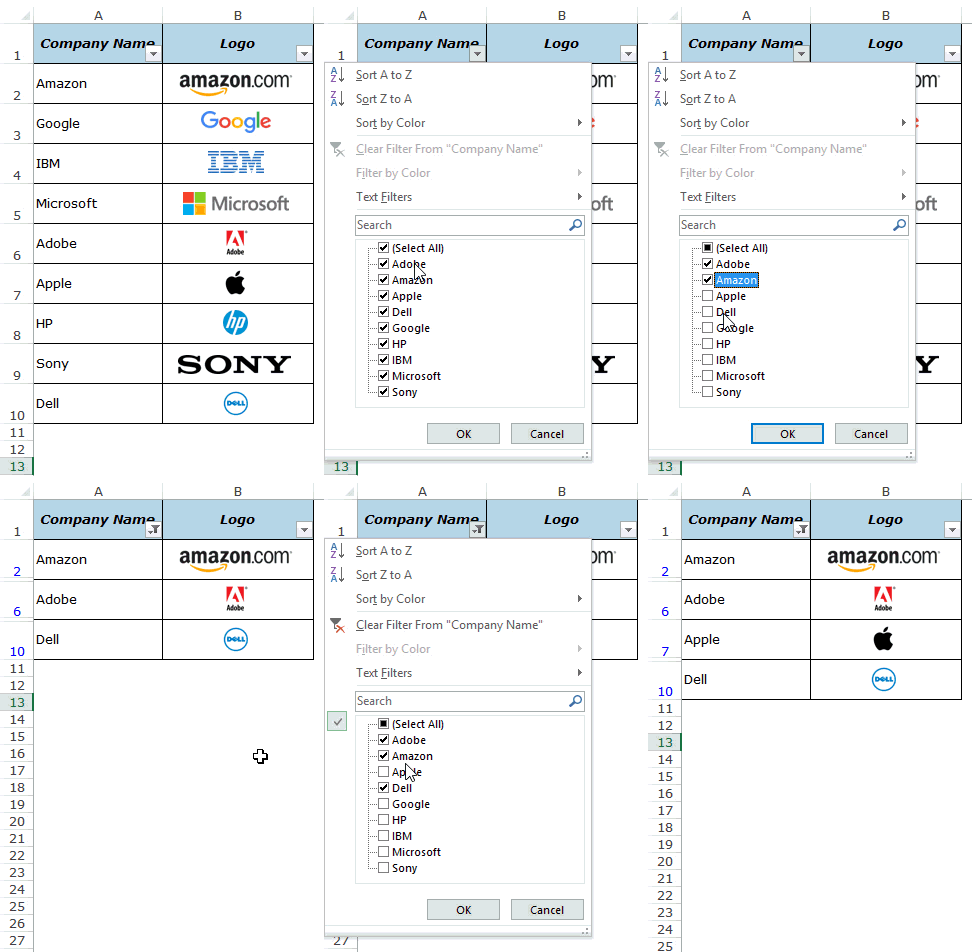
<p>Trong hình minh họa bên dưới, logo của những công ty phổ biến được đặt ở cột bên cạnh tên thương hiệu. Mỗi khi sử dụng bộ lọc ở cột Company name, hình ảnh ở cột logo cũng sẽ được lọc cùng với dữ liệu tên công ty.</p>
<img alt="chèn ảnh vào 1 ô trong excel" height="476" src="https://ghiencongnghe.info/wp-content/uploads/2020/11/chen-anh-vao-mot-o-trong-excel.gif" title="&#039;Tuyệt chiêu&#039; chèn ảnh vào 1 ô trong Excel cực hữu dụng" width="324" />
<p>Tính năng này cực kỳ hữu dụng nếu bạn đang kinh doanh, và thao tác nhiều với nhiều mặt hàng với hình ảnh và mã sản phẩm tương ứng.</p>

<p>Khi bạn chèn ảnh vào 1 ô trong Excel, ảnh trong ô đó vẫn chưa được liên kết với những ô khác và không thể thực hiện thao tác lọc dữ liệu, di chuyển, ẩn và thay đổi kích thước theo ô. Trong phần hướng dẫn bên dưới, <strong>tinhocdct.xyz</strong> sẽ hướng dẫn từng bước để bạn thực hiện thao tác chèn ảnh vào 1 ô trong Excel cũng như thao tác khóa hình ảnh với ô trong Excel để mỗi khi thực hiện tương tác với ô (ẩn ô, sử dụng bộ lọc dữ liệu, di chuyển ô đến vị trí khác…v…v) ảnh sẽ tự động thay đổi sao cho phù hợp.</p>

<h2 id="1-1-chen-anh-vao-1-o-trong-excel"><strong>1. Chèn ảnh vào 1 ô trong Excel</strong></h2>

<p>Sau đây là hướng dẫn chi tiết cách chèn ảnh vào 1 ô trong Excel:</p>

<ol>
	<li>Mở tab&nbsp;<strong>Insert</strong>.</li>
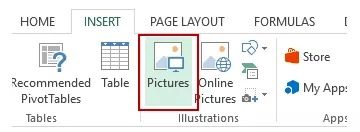
	<li>Click vào tùy chọn&nbsp;<strong>Pictures</strong>&nbsp;(thuộc nhóm Illustrations).<br  />
	<img alt="chèn ảnh vào 1 ô trong excel" height="132" loading="lazy" sizes="(max-width: 360px) 100vw, 360px" src="https://ghiencongnghe.info/wp-content/uploads/2020/11/chen-anh-vao-mot-o-trong-excel.jpg" srcset="https://ghiencongnghe.info/wp-content/uploads/2020/11/chen-anh-vao-mot-o-trong-excel.jpg 360w, https://ghiencongnghe.info/wp-content/uploads/2020/11/chen-anh-vao-mot-o-trong-excel-300x110.jpg 300w" title="&#039;Tuyệt chiêu&#039; chèn ảnh vào 1 ô trong Excel cực hữu dụng" width="360" /></li>
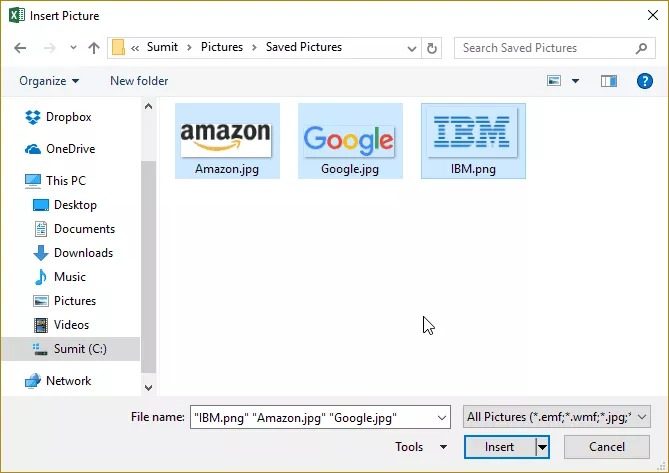
	<li>Hộp thoại ‘<strong>Insert Picture</strong>’ xuất hiện, hãy tìm đến thư mục chứa hình ảnh muốn chèn, sau đó bôi đen để chọn (có thể chèn 1 hoặc nhiều ảnh cùng lúc).<br  />
	<img alt="chèn ảnh vào 1 ô trong excel" height="473" loading="lazy" sizes="(max-width: 669px) 100vw, 669px" src="https://ghiencongnghe.info/wp-content/uploads/2020/11/chen-anh-vao-mot-o-trong-excel-1.jpg" srcset="https://ghiencongnghe.info/wp-content/uploads/2020/11/chen-anh-vao-mot-o-trong-excel-1.jpg 669w, https://ghiencongnghe.info/wp-content/uploads/2020/11/chen-anh-vao-mot-o-trong-excel-1-300x212.jpg 300w" title="&#039;Tuyệt chiêu&#039; chèn ảnh vào 1 ô trong Excel cực hữu dụng" width="669" /></li>
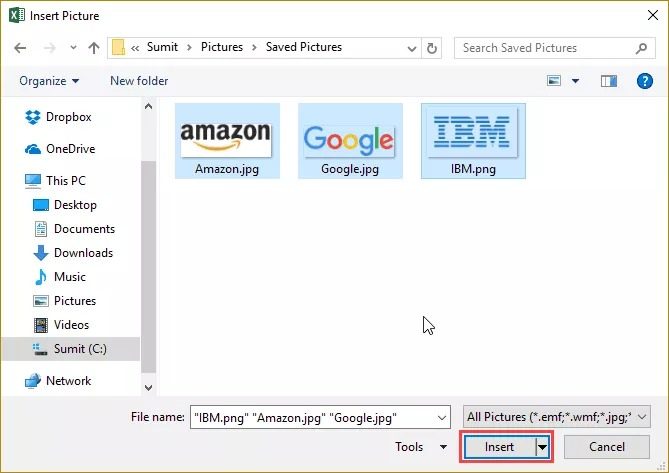
	<li>Click vào&nbsp;<strong>Insert</strong>&nbsp;để chèn ảnh.<br  />
	<img alt="chèn ảnh vào 1 ô trong excel" height="473" loading="lazy" sizes="(max-width: 669px) 100vw, 669px" src="https://ghiencongnghe.info/wp-content/uploads/2020/11/chen-anh-vao-mot-o-trong-excel-2.jpg" srcset="https://ghiencongnghe.info/wp-content/uploads/2020/11/chen-anh-vao-mot-o-trong-excel-2.jpg 669w, https://ghiencongnghe.info/wp-content/uploads/2020/11/chen-anh-vao-mot-o-trong-excel-2-300x212.jpg 300w" title="&#039;Tuyệt chiêu&#039; chèn ảnh vào 1 ô trong Excel cực hữu dụng" width="669" /></li>
	<li>Thay đổi kích thước của hình ảnh sao cho vừa vặn với kích thước ô Excel.<br  />
	<img alt="chèn ảnh vào 1 ô trong excel" height="145" loading="lazy" sizes="(max-width: 529px) 100vw, 529px" src="https://ghiencongnghe.info/wp-content/uploads/2020/11/chen-anh-vao-mot-o-trong-excel-3.jpg" srcset="https://ghiencongnghe.info/wp-content/uploads/2020/11/chen-anh-vao-mot-o-trong-excel-3.jpg 529w, https://ghiencongnghe.info/wp-content/uploads/2020/11/chen-anh-vao-mot-o-trong-excel-3-300x82.jpg 300w" title="&#039;Tuyệt chiêu&#039; chèn ảnh vào 1 ô trong Excel cực hữu dụng" width="529" /></li>
	<li>Chèn hình ảnh vào ô trong Excel.
	<ul>
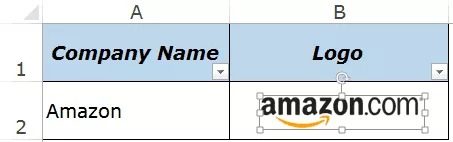
		<li>Bạn có thể nhấn giữ phím&nbsp;<strong>ALT</strong>&nbsp;sau đó kéo ảnh cần chèn vào ô bằng cách click giữ chuột trái sau đó rê ảnh vào ô cần chèn. Hình ảnh sẽ tự điều chỉnh sao cho vừa sát với viền của ô Excel.<br  />
		<img alt="chèn ảnh vào 1 ô trong excel" height="142" loading="lazy" sizes="(max-width: 453px) 100vw, 453px" src="https://ghiencongnghe.info/wp-content/uploads/2020/11/chen-anh-vao-mot-o-trong-excel-4.jpg" srcset="https://ghiencongnghe.info/wp-content/uploads/2020/11/chen-anh-vao-mot-o-trong-excel-4.jpg 453w, https://ghiencongnghe.info/wp-content/uploads/2020/11/chen-anh-vao-mot-o-trong-excel-4-300x94.jpg 300w" title="&#039;Tuyệt chiêu&#039; chèn ảnh vào 1 ô trong Excel cực hữu dụng" width="453" /></li>
	</ul>
	</li>
</ol>

<p>Nếu bạn muốn chèn nhiều hình ảnh cùng lúc vào trong ô, bạn có thể chọn nhiều ảnh một lúc trong bước 4 ở trên.</p>

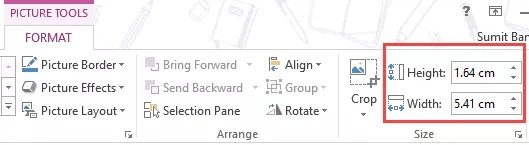
<p>Bạn cũng có thể thay đổi kích thước ảnh bằng cách chọn vào ảnh, sau đó kéo rê phần viền để điều chỉnh kích thước mong muốn. Trong trường hợp bạn muốn giữ đúng tỷ lệ hình ảnh logo, ảnh sản phẩm, hãy kéo rê phần góc của ảnh để điều chỉnh.</p>

<p>Khi ảnh đã ở trong ô sau khi thực hiện các bước trên, hình ảnh cần phải được khóa với ô để có thể thay đổi kích thước, sử dụng bộ lọc hoặc ẩn ô. Bạn cần phải thực hiện thao tác khóa ảnh với ô Excel, hãy thực hiện theo hướng dẫn bên dưới:</p>

<h2 id="2-2-thao-tac-khoa-anh-voi-o-trong-excel"><strong>2. Thao tác khóa ảnh với ô trong Excel</strong></h2>

<p>Sau khi đã chèn xong ảnh vào bảng tính, trước tiên hãy thay đổi kích thước của nó sao cho vừa vặn trong ô, sau đó thực hiện các bước sau:</p>

<ol>
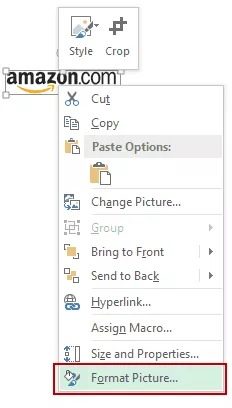
	<li>Nhấn chuột phải vào hình ảnh và chọn&nbsp;<strong>Format Picture</strong>.<br  />
	<img alt="chèn ảnh vào 1 ô trong excel" height="408" loading="lazy" sizes="(max-width: 232px) 100vw, 232px" src="https://ghiencongnghe.info/wp-content/uploads/2020/11/chen-anh-vao-mot-o-trong-excel-5.jpg" srcset="https://ghiencongnghe.info/wp-content/uploads/2020/11/chen-anh-vao-mot-o-trong-excel-5.jpg 232w, https://ghiencongnghe.info/wp-content/uploads/2020/11/chen-anh-vao-mot-o-trong-excel-5-171x300.jpg 171w" title="&#039;Tuyệt chiêu&#039; chèn ảnh vào 1 ô trong Excel cực hữu dụng" width="232" /></li>
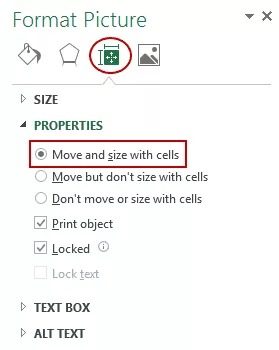
	<li>Trong thanh điều khiển của&nbsp;<strong>Format Picture</strong>, chọn&nbsp;<strong>Size &amp; Properties</strong>&nbsp;(biểu tượng như hình minh họa) sau đó tích vào tùy chọn ‘<strong>Move and size with cells</strong>’ để khóa ảnh với ô trong Excel.<br  />
	<img alt="chèn ảnh vào 1 ô trong excel" height="350" loading="lazy" sizes="(max-width: 279px) 100vw, 279px" src="https://ghiencongnghe.info/wp-content/uploads/2020/11/chen-anh-vao-mot-o-trong-excel-6.jpg" srcset="https://ghiencongnghe.info/wp-content/uploads/2020/11/chen-anh-vao-mot-o-trong-excel-6.jpg 279w, https://ghiencongnghe.info/wp-content/uploads/2020/11/chen-anh-vao-mot-o-trong-excel-6-239x300.jpg 239w" title="&#039;Tuyệt chiêu&#039; chèn ảnh vào 1 ô trong Excel cực hữu dụng" width="279" /></li>
</ol>

<p>Vậy là bạn đã thực hiện xong việc khóa ảnh vào ô trong Excel, mỗi khi bạn tác động vào ô với các thao tác ẩn ô, sử dụng bộ lọc dữ liệu, di chuyển ô đến vị trí khác v.v… Ảnh sẽ tự động thay đổi theo để phù hợp với ô.</p>

<p>Cám ơn các bạn đã xem!</p>
		</div>
				<div id="author">
						<p>
				<strong>Tác giả bài viết:</strong>
				Thanh Sơn
			</p>
		</div>
	</div>
	<div id="footer" class="clearfix">
		<div id="url">
			<strong>URL của bản tin này: </strong><a href="https://tinhocdct.xyz/tin-cong-nghe/tuyet-chieu-chen-anh-vao-1-o-trong-excel-cuc-huu-dung-251.html" title="Chèn ảnh vào 1 ô trong Excel">https://tinhocdct.xyz/tin-cong-nghe/tuyet-chieu-chen-anh-vao-1-o-trong-excel-cuc-huu-dung-251.html</a>

		</div>
		<div class="clear"></div>
		<div class="copyright">
			&copy; TỔ TIN HỌC TRƯỜNG THPT ĐỖ CÔNG TƯỜNG
		</div>
		<div id="contact">
			<a href="mailto:webmaster@tinhocdct.xyz">webmaster@tinhocdct.xyz</a>
		</div>
	</div>
</div>
        <div id="timeoutsess" class="chromeframe">
            Bạn đã không sử dụng Site, <a onclick="timeoutsesscancel();" href="https://tinhocdct.xyz/#">Bấm vào đây để duy trì trạng thái đăng nhập</a>. Thời gian chờ: <span id="secField"> 60 </span> giây
        </div>
        <div id="openidResult" class="nv-alert" style="display:none"></div>
        <div id="openidBt" data-result="" data-redirect=""></div>
<div id="run_cronjobs" style="visibility:hidden;display:none;"><img alt="" src="/index.php?second=cronjobs&amp;p=l64bMbcD" width="1" height="1" /></div>
<script src="https://tinhocdct.xyz/assets/js/jquery/jquery.min.js"></script>
<script>var nv_base_siteurl="/",nv_lang_data="vi",nv_lang_interface="vi",nv_name_variable="nv",nv_fc_variable="op",nv_lang_variable="language",nv_module_name="news",nv_func_name="savefile",nv_is_user=0, nv_my_ofs=-4,nv_my_abbr="EDT",nv_cookie_prefix="nv4",nv_check_pass_mstime=1738000,nv_area_admin=0,nv_safemode=0,theme_responsive=0,nv_is_recaptcha=0;</script>
<script src="https://tinhocdct.xyz/assets/js/language/vi.js"></script>
<script src="https://tinhocdct.xyz/assets/js/global.js"></script>
<script src="https://tinhocdct.xyz/themes/default/js/news.js"></script>
<script src="https://tinhocdct.xyz/themes/default/js/main.js"></script>
<script async src="https://pagead2.googlesyndication.com/pagead/js/adsbygoogle.js?client=ca-pub-1816161148536198"
     crossorigin="anonymous"></script>
<script src="https://tinhocdct.xyz/themes/default/js/bootstrap.min.js"></script>
</body>
</html>