<!DOCTYPE html>
	<html lang="vi" xmlns="http://www.w3.org/1999/xhtml" prefix="og: http://ogp.me/ns#">
	<head>
<title>Cài đặt đồng bộ dữ liệu Google Drive với máy tính</title>
<meta name="description" content="Cài đặt đồng bộ dữ liệu Google Drive với máy tính - Savefile - Tin Tức -...">
<meta name="author" content="TỔ TIN HỌC TRƯỜNG THPT ĐỖ CÔNG TƯỜNG">
<meta name="copyright" content="TỔ TIN HỌC TRƯỜNG THPT ĐỖ CÔNG TƯỜNG [webmaster@tinhocdct.xyz]">
<meta name="robots" content="index, archive, follow, noodp">
<meta name="googlebot" content="index,archive,follow,noodp">
<meta name="msnbot" content="all,index,follow">
<meta name="generator" content="NukeViet v4.0">
<meta http-equiv="Content-Type" content="text/html; charset=utf-8">
<meta property="og:title" content="Cài đặt đồng bộ dữ liệu Google Drive với máy tính">
<meta property="og:type" content="website">
<meta property="og:description" content="Savefile - Tin Tức - https&#x3A;&#x002F;&#x002F;tinhocdct.xyz&#x002F;savefile&#x002F;tin-cong-nghe&#x002F;cai-dat-dong-bo-du-lieu-google-drive-voi-may-tinh-66.html">
<meta property="og:site_name" content="TỔ TIN HỌC TRƯỜNG THPT ĐỖ CÔNG TƯỜNG">
<meta property="og:url" content="https://tinhocdct.xyz/tin-cong-nghe/cai-dat-dong-bo-du-lieu-google-drive-voi-may-tinh-66.html">
<link rel="shortcut icon" href="https://tinhocdct.xyz/favicon.ico">
<link rel="canonical" href="https://tinhocdct.xyz/tin-cong-nghe/cai-dat-dong-bo-du-lieu-google-drive-voi-may-tinh-66.html">
<link rel="alternate" href="https://tinhocdct.xyz/rss/" title="Tin Tức" type="application/rss+xml">
<link rel="alternate" href="https://tinhocdct.xyz/rss/tin-tuc/" title="Tin Tức - TIN TỨC" type="application/rss+xml">
<link rel="alternate" href="https://tinhocdct.xyz/rss/thong-cao-bao-chi/" title="Tin Tức - THÔNG BÁO" type="application/rss+xml">
<link rel="alternate" href="https://tinhocdct.xyz/rss/ban-tin-noi-bo/" title="Tin Tức - BẢN TIN NỘI BỘ" type="application/rss+xml">
<link rel="alternate" href="https://tinhocdct.xyz/rss/tin-cong-nghe/" title="Tin Tức - CÔNG NGHỆ - KHOA HỌC" type="application/rss+xml">
<link rel="alternate" href="https://tinhocdct.xyz/rss/thu-thuat/" title="Tin Tức - THỦ THUẬT" type="application/rss+xml">
<link rel="alternate" href="https://tinhocdct.xyz/rss/tien-ich/" title="Tin Tức - TIỆN ÍCH" type="application/rss+xml">
<link rel="alternate" href="https://tinhocdct.xyz/rss/ai/" title="Tin Tức - AI" type="application/rss+xml">
<link rel="alternate" href="https://tinhocdct.xyz/rss/khoa-hoc/" title="Tin Tức - KHOA HỌC" type="application/rss+xml">
<link rel="alternate" href="https://tinhocdct.xyz/rss/hoat-dong-chuyen-mon/" title="Tin Tức - HOẠT ĐỘNG CHUYÊN MÔN" type="application/rss+xml">
<link rel="alternate" href="https://tinhocdct.xyz/rss/hoat-dong-cong-doan/" title="Tin Tức - CÔNG ĐOÀN" type="application/rss+xml">
<link rel="alternate" href="https://tinhocdct.xyz/rss/hoat-dong-doan-the/" title="Tin Tức - ĐOÀN THỂ" type="application/rss+xml">
<link rel="alternate" href="https://tinhocdct.xyz/rss/tuyen-sinh-huong-nghiep/" title="Tin Tức - TUYỂN SINH - HƯỚNG NGHIỆP" type="application/rss+xml">
<link rel="alternate" href="https://tinhocdct.xyz/rss/tuyen-sinh-2025/" title="Tin Tức - TUYỂN SINH 2025" type="application/rss+xml">
<link rel="alternate" href="https://tinhocdct.xyz/rss/lich-cong-tac-tuan/" title="Tin Tức - Lịch công tác tuần" type="application/rss+xml">
<link rel="preload" as="script" href="https://tinhocdct.xyz/assets/js/jquery/jquery.min.js">
<link rel="preload" as="script" href="https://tinhocdct.xyz/assets/js/language/vi.js">
<link rel="preload" as="script" href="https://tinhocdct.xyz/assets/js/global.js">
<link rel="preload" as="script" href="https://tinhocdct.xyz/themes/default/js/news.js">
<link rel="preload" as="script" href="https://tinhocdct.xyz/themes/default/js/main.js">
<link rel="preload" as="script" href="https://pagead2.googlesyndication.com/pagead/js/adsbygoogle.js?client=ca-pub-1816161148536198">
<link rel="preload" as="script" href="https://tinhocdct.xyz/themes/default/js/bootstrap.min.js">
<link rel="StyleSheet" href="https://tinhocdct.xyz/assets/css/font-awesome.min.css">
<link rel="StyleSheet" href="https://tinhocdct.xyz/themes/default/css/bootstrap.non-responsive.css">
<link rel="StyleSheet" href="https://tinhocdct.xyz/themes/default/css/style.css">
<link rel="StyleSheet" href="https://tinhocdct.xyz/themes/default/css/style.non-responsive.css">
<link rel="StyleSheet" href="https://tinhocdct.xyz/themes/default/css/news.css">
<style>
	body{background: #fff;}
</style>
	</head>
	<body>
<div id="print">
	<div id="hd_print">
		<h2 class="pull-left">TỔ TIN HỌC TRƯỜNG THPT ĐỖ CÔNG TƯỜNG</h2>
		<p class="pull-right"><a title="TỔ TIN HỌC TRƯỜNG THPT ĐỖ CÔNG TƯỜNG" href="https://tinhocdct.xyz/">https://tinhocdct.xyz</a></p>
	</div>
	<div class="clear"></div>
	<hr />
	<div id="content">
		<h1>Cài đặt đồng bộ dữ liệu Google Drive với máy tính</h1>
		<ul class="list-inline">
			<li>Chủ nhật - 19/07/2020 20:43</li>
			<li class="hidden-print txtrequired"><em class="fa fa-print">&nbsp;</em><a title="In ra" href="javascript:;" onclick="window.print()">In ra</a></li>
			<li class="hidden-print txtrequired"><em class="fa fa-power-off">&nbsp;</em><a title="Đóng cửa sổ này" href="javascript:;" onclick="window.close()">Đóng cửa sổ này</a></li>
		</ul>
		<div class="clear"></div>
		<div id="hometext">
			Như các bạn cũng đã biết thì Google Drive là một trong những dịch vụ lưu trữ đám mây hàng đầu hiện nay, bởi sự an toàn, uy tín và tính bảo mật tuyệt vời. Tất nhiên rồi, đây là một sản phẩm của Google mà 😀
		</div>
				<div class="imghome">
			<img alt="Cài đặt đồng bộ dữ liệu Google Drive với máy tính" src="https://tinhocdct.xyz/uploads/news/2020_07/cai-dat-google-drive-tren-may-tinh-2.jpg" width="460" class="img-thumbnail" />
		</div>
		<div class="clear"></div>
		<div id="bodytext" class="clearfix">
			<p>Ngoài ra, Google Drive còn hỗ trợ tính năng đồng bộ hoá và sao lưu dữ liệu nhanh trên máy tính lên Drive và ngược lại. Giúp bạn có thể làm việc tại bất cứ đâu, chỉ cần máy tính hoặc thiết bị điện di động của bạn có kết nối mạng Internet.</p>

<p>Nếu như bạn đã từng sử dụng&nbsp;<a href="https://blogchiasekienthuc.com/thu-thuat-internet/dich-vu-luu-tru-dam-may-dropbox.html">dịch vụ lưu trữ trực tuyến Dropbox</a>&nbsp;rồi thì bạn có thể hình dung ra việc sử dụng Google Drive cũng hoàn toàn tương tự như vậy.</p>

<p>Vâng, để đồng bộ hoá dữ liệu giữa Google Drive với máy tính và các thiết bị di động thành công, và cũng là để giúp các bạn hiểu hơn về Google Drive thì trong bài viết ngày hôm nay mình sẽ hướng dẫn cho các bạn từng bước cụ thể, để các bạn có thể dễ dàng hiểu được tính năng đồng bộ hoá (Sync) Google Drive trên máy tính của mình.</p>

<p><strong>#1. Hướng dẫn cài đặt cấu hình tài khoản Google Drive trên máy tính</strong></p>

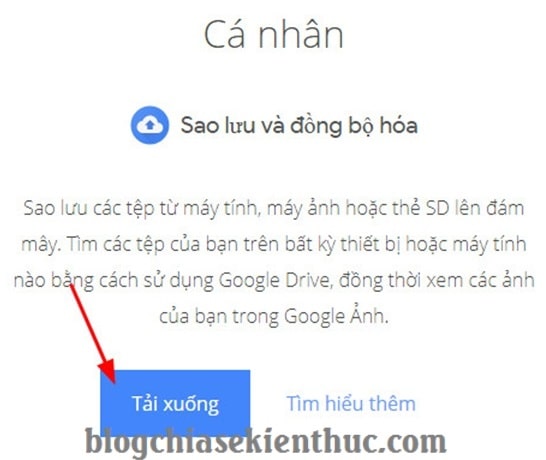
<p><strong>+ Bước 1:</strong>&nbsp;Sạn đăng nhập vào link liên kết sau:&nbsp;<a href="https://www.google.com/drive/download/" rel="nofollow noopener noreferrer" target="_blank">https://www.google.com/drive/download/</a>&nbsp;=&gt; rồi click vào nút&nbsp;<code>Tải xuống</code>&nbsp;tại phần&nbsp;<code>Cá nhân (Personal) - Sao lưu và đồng bộ hoá</code>.</p>
&nbsp;

<p>Để sử dụng các dữ liệu được đồng bộ trên điện thoại thì bạn chỉ cần tải và cài đặt ứng dụng Google Drive vào Smartphone của bạn là được.</p>

<ul>
	<li><a href="https://itunes.apple.com/app/google-drive/id507874739" rel="nofollow noopener noreferrer" target="_blank">Google Drive cho iOS</a>&nbsp;(iPhone, iPad..)</li>
	<li><a href="https://play.google.com/store/apps/details?id=com.google.android.apps.docs" rel="nofollow noopener noreferrer" target="_blank">Google Drive cho Android</a>&nbsp;(SamSung, Oppo, LG, HTC…)</li>
</ul>

<p><img alt="cai-dat-google-drive-tren-may-tinh (2)" data-ll-status="loaded" height="320" src="https://blogchiasekienthuc.com/wp-content/uploads/2019/04/cai-dat-google-drive-tren-may-tinh-2.jpg" width="380" /></p>

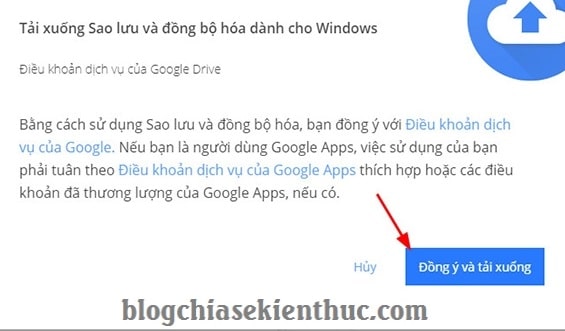
<p><strong>+ Bước 2</strong>: Tiếp theo bạn chọn&nbsp;<code>Đồng ý và tải xuống</code>&nbsp;để xác nhận việc tải về file cài đặt.</p>

<p><img alt="cai-dat-google-drive-tren-may-tinh (4)" data-ll-status="loaded" height="331" src="https://blogchiasekienthuc.com/wp-content/uploads/2019/04/cai-dat-google-drive-tren-may-tinh-4.jpg" width="565" /></p>
&nbsp;

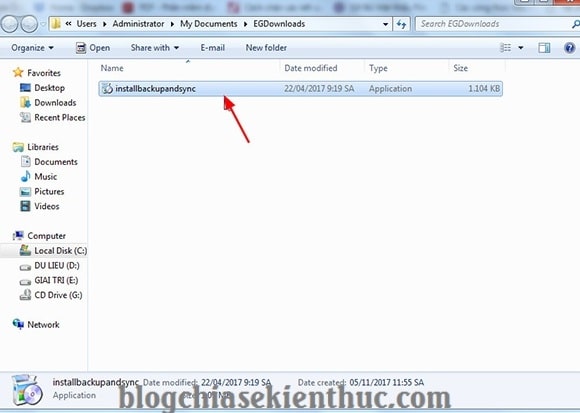
<p><strong>+ Bước 3:</strong>&nbsp;Tại đây bạn click đúp chuột vào file mới tải về để chúng ta bắt đầu quá trình cài đặt ứng dụng Google Drive trên máy tính.</p>

<p><img alt="cai-dat-google-drive-tren-may-tinh (5)" data-ll-status="loaded" height="413" src="https://blogchiasekienthuc.com/wp-content/uploads/2019/04/cai-dat-google-drive-tren-may-tinh-5.jpg" width="580" /></p>

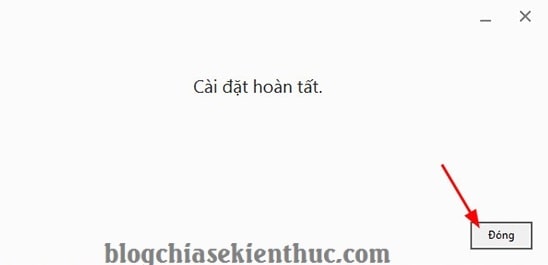
<p><strong>+ Bước 4:</strong>&nbsp;Sau khi cài đặt xong, bạn click&nbsp;<code>Đóng</code>&nbsp;để hoàn tất.</p>

<p><img alt="cai-dat-google-drive-tren-may-tinh (6)" data-ll-status="loaded" height="265" src="https://blogchiasekienthuc.com/wp-content/uploads/2019/04/cai-dat-google-drive-tren-may-tinh-6.jpg" width="548" /></p>

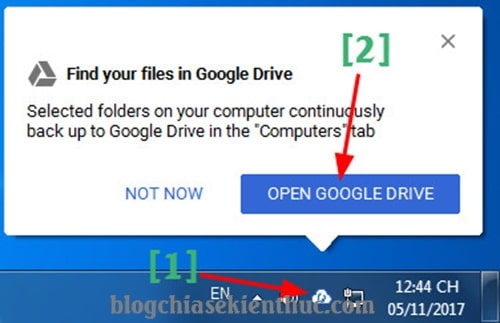
<p><strong>+ Bước 5:&nbsp;</strong>Lúc này ở dưới thanh Taskbar sẽ có một icon của Google Drive ở đây. Biểu tượng đám mây như hình bên dưới..</p>

<p><img alt="cai-dat-google-drive-tren-may-tinh (16)" data-ll-status="loaded" height="323" src="https://blogchiasekienthuc.com/wp-content/uploads/2019/04/cai-dat-google-drive-tren-may-tinh-16.jpg" width="500" /></p>

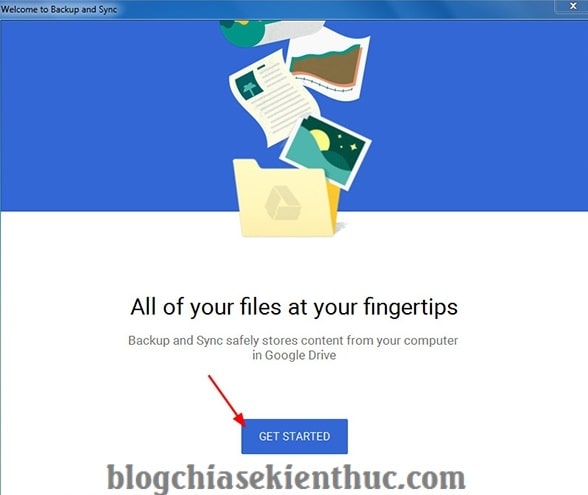
<p><strong>+ Bước 6:</strong>&nbsp;Tiếp theo phần mềm sẽ hiển thị một thông báo với nội dung là&nbsp;<code>All or your files as your fingertips</code>. Bạn click chọn&nbsp;<code>GET STARTED</code>&nbsp;để tiếp tục cài đặt cấu hình.</p>

<p><img alt="cai-dat-google-drive-tren-may-tinh (7)" data-ll-status="loaded" height="495" src="https://blogchiasekienthuc.com/wp-content/uploads/2019/04/cai-dat-google-drive-tren-may-tinh-7.jpg" width="588" /></p>

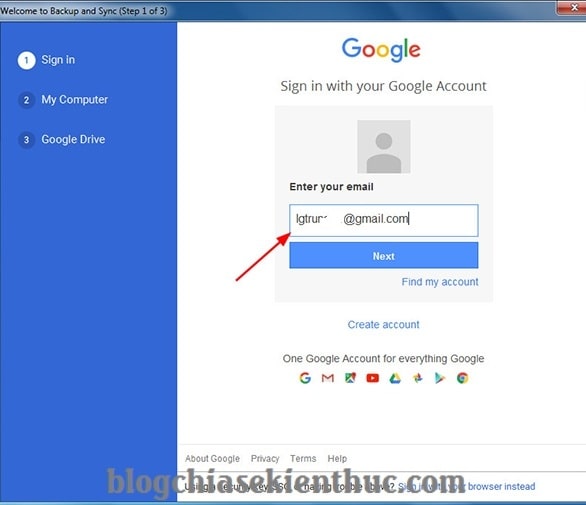
<p><strong>+ Bước 7:</strong>&nbsp;Sau đó bạn nhập địa chỉ tài khoản Google Drive (&nbsp;<a href="https://blogchiasekienthuc.com/thu-thuat-internet/cach-tao-tai-khoan-gmail.html">tài khoản Gmail</a>&nbsp;) mà bạn muốn đồng bộ hoá vào =&gt; và click&nbsp;<code>Next</code>&nbsp;để đăng nhập vào tài khoản.</p>

<p><img alt="cai-dat-google-drive-tren-may-tinh (8)" data-ll-status="loaded" height="505" src="https://blogchiasekienthuc.com/wp-content/uploads/2019/04/cai-dat-google-drive-tren-may-tinh-8.jpg" width="586" /></p>

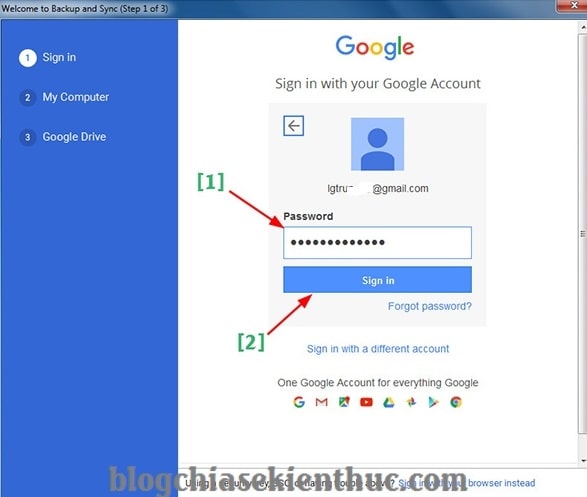
<p><strong>+ Bước 8:</strong>&nbsp;Rồi bạn nhập mật khẩu của tài khoản Google Drive (tài khoản gmail) =&gt; rồi nhấn&nbsp;<code>Sign In</code>&nbsp;để đăng nhập.</p>

<p><img alt="cai-dat-google-drive-tren-may-tinh (9)" data-ll-status="loaded" height="497" src="https://blogchiasekienthuc.com/wp-content/uploads/2019/04/cai-dat-google-drive-tren-may-tinh-9.jpg" width="587" /></p>

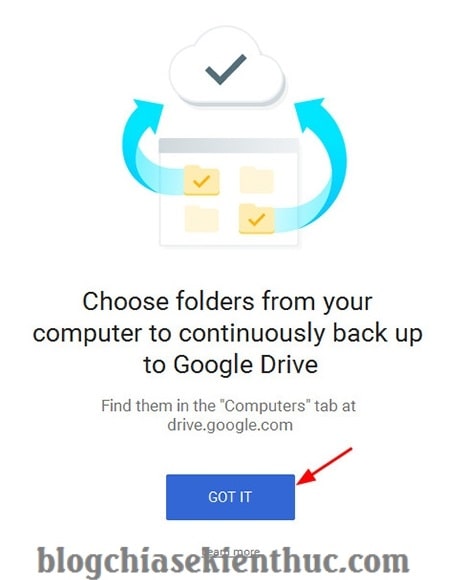
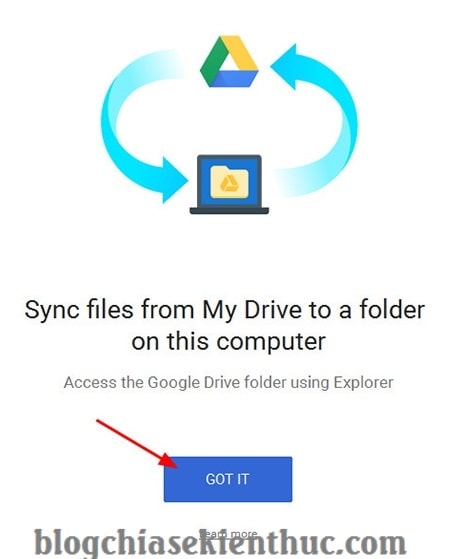
<p><strong>+ Bước 9:</strong>&nbsp;Tiếp theo bạn click vào&nbsp;<code>GOT IT</code>&nbsp;để chọn đồng bộ hoá.</p>

<p><img alt="cai-dat-google-drive-tren-may-tinh (10)" data-ll-status="loaded" height="580" src="https://blogchiasekienthuc.com/wp-content/uploads/2019/04/cai-dat-google-drive-tren-may-tinh-10.jpg" width="463" /></p>

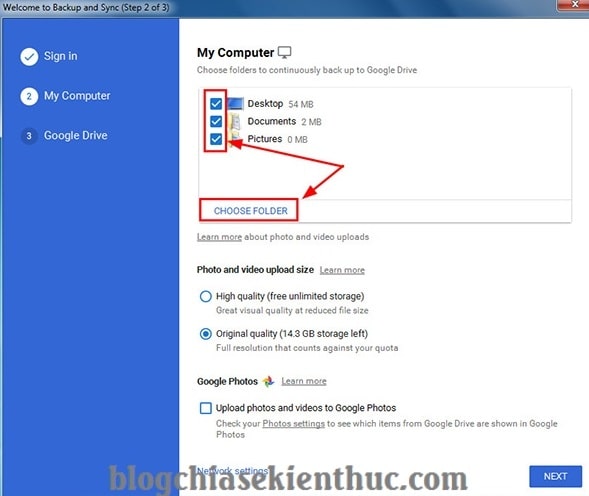
<p><strong>+ Bước 10:</strong>&nbsp;Tại đây, Google Drive sẽ đưa ra một số thư mục mặc định để đồng bộ hoá là&nbsp;<code>Desktop</code>,&nbsp;<code>Document</code>&nbsp;và&nbsp;<code>Pictures.</code></p>

<p>Bạn có thể click bỏ chọn nếu bạn cảm thấy không muốn đồng bộ hoá nó lên tài khoản Google Drive. Mình thì thường bỏ tích hết mấy mục này.</p>

<p>Mà thay vào đó, mình sẽ thiết lập những như mục thực sự cần thiết để đồng bộ nó lên Google Drive thôi. Bạn thực hiên như sau:</p>

<p>Click vào&nbsp;<code>CHOOSE FOLDER</code>&nbsp;=&gt; và chọn các thư mục quan trọng có trên máy tính mà bạn muốn đồng bộ hoá nó lên tài khoản Google Drive.</p>

<blockquote>
<p>// Đây là phần thiết lập đồng bộ dữ liệu từ máy tính lên Google Drive nha các bạn.</p>
</blockquote>

<p><img alt="cai-dat-google-drive-tren-may-tinh (11)" data-ll-status="loaded" height="496" src="https://blogchiasekienthuc.com/wp-content/uploads/2019/04/cai-dat-google-drive-tren-may-tinh-11.jpg" width="589" /></p>

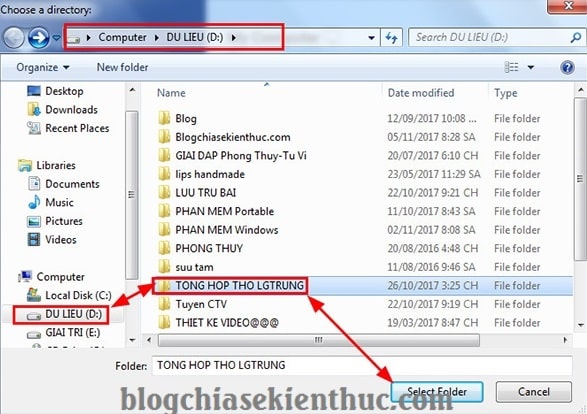
<p>Ví dụ ở đây mình muốn chọn thêm một Folder mà mình hay dùng và tương đối quan trọng để đồng bộ sao lưu dữ liệu.</p>

<p>Mình sẽ click vào&nbsp;<code>CHOOSE FOLDER</code>&nbsp;=&gt; và chọn tới thư mục mình muốn đồng bộ =&gt; Sau đó click chọn&nbsp;<code>Select Folder</code>&nbsp;để thêm thư mục đồng bộ hoá trên máy tính.</p>

<p><img alt="cai-dat-google-drive-tren-may-tinh (12)" data-ll-status="loaded" height="414" src="https://blogchiasekienthuc.com/wp-content/uploads/2019/04/cai-dat-google-drive-tren-may-tinh-12.jpg" width="587" /></p>

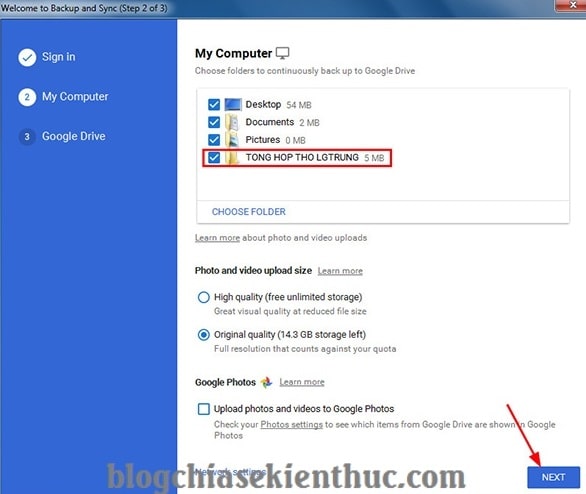
<p><strong>+ Bước 11:</strong>&nbsp;Đấy, thư mục mình vừa chọn đã được thêm vào danh sách đồng bộ. Bạn nhấn&nbsp;<code>Next</code>&nbsp;để tiếp tục.</p>

<p><img alt="cai-dat-google-drive-tren-may-tinh (13)" data-ll-status="loaded" height="494" src="https://blogchiasekienthuc.com/wp-content/uploads/2019/04/cai-dat-google-drive-tren-may-tinh-13.jpg" width="586" /></p>

<p><strong>+ Bước 12:</strong>&nbsp;Chọn&nbsp;<code>GOT IT</code>&nbsp;để đồng ý việc đồng bộ hóa.</p>

<p><img alt="cai-dat-google-drive-tren-may-tinh (14)" data-ll-status="loaded" height="559" src="https://blogchiasekienthuc.com/wp-content/uploads/2019/04/cai-dat-google-drive-tren-may-tinh-14.jpg" width="456" /></p>

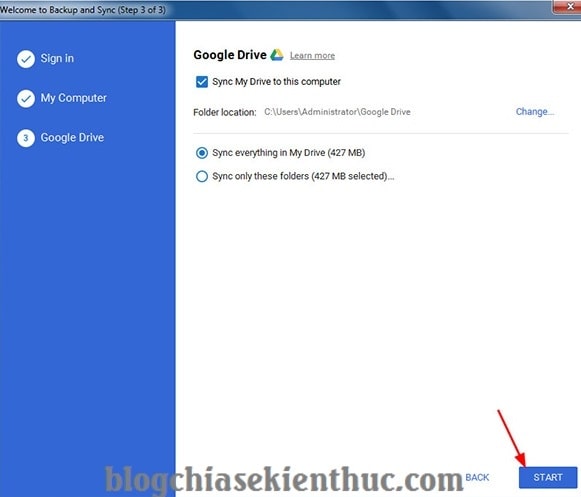
<p><strong>+ Bước 13:&nbsp;</strong>Đây là phần&nbsp;thiết lập đồng bộ ngược lại từ Google Drive về máy tính. Bạn có thể sao lưu toàn bộ dữ liệu có trên Google Drive về máy tính một cách dễ dàng.</p>

<p>Nếu bạn muốn sử dụng tính năng này thì bạn nên nhấn vào nút&nbsp;<code>Change...</code>&nbsp;và chọn thư mục mà bạn muốn lưu trong phân vùng ổ D, E… Vì mặc định nó sẽ được lưu trữ ở ngoài màn hình Desktop nên rất tốn dung lương của ổ C.</p>

<p>Mình thì không muốn đồng bộ dữ liệu từ Google Drive về máy tính nên mình sẽ bỏ tích ở phần&nbsp;<code>Syn My Drive to this computer</code>.</p>

<p>Sau đó click&nbsp;<code>START</code>&nbsp;để bắt đầu đồng bộ dữ liệu từ máy tính, và ngược lại.</p>

<p><img alt="cai-dat-google-drive-tren-may-tinh (15)" data-ll-status="loaded" height="497" src="https://blogchiasekienthuc.com/wp-content/uploads/2019/04/cai-dat-google-drive-tren-may-tinh-15.jpg" width="581" /></p>

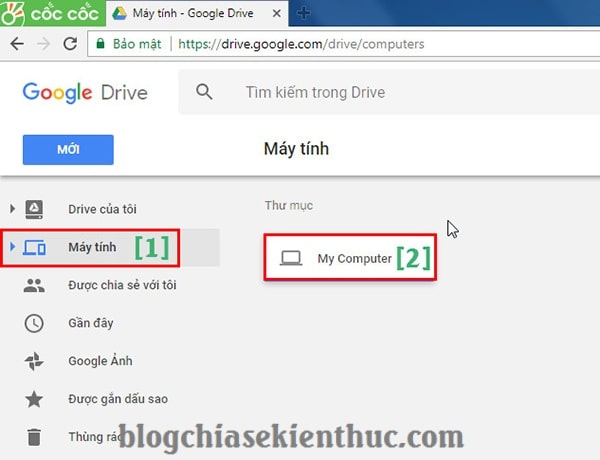
<p><strong>+ Bước 14:</strong>&nbsp;Kết quả đây nhé các bạn. Bạn&nbsp;<a href="https://www.google.com/drive/" rel="nofollow noopener noreferrer" target="_blank">vào lại tài khoản Google Drive</a>&nbsp;=&gt; và vào mục Máy tính để xem các thư mục mà bạn đã đồng bộ từ máy tính lên.</p>

<p><img alt="cai-dat-google-drive-tren-may-tinh (19)" data-ll-status="loaded" height="460" src="https://blogchiasekienthuc.com/wp-content/uploads/2019/04/cai-dat-google-drive-tren-may-tinh-19.jpg" width="600" /></p>

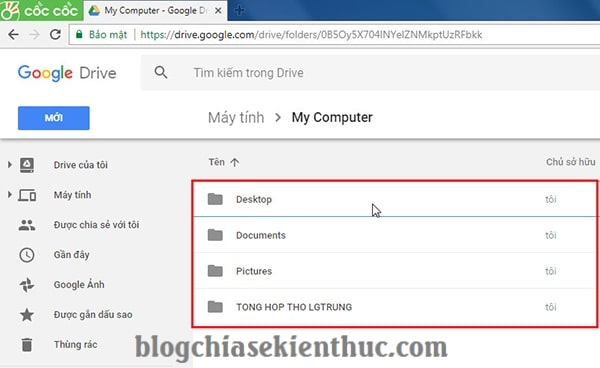
<p>Các thư mục trên máy tính đã được đồng bộ lên tài khoản Google Drive của bạn.</p>

<p><img alt="cai-dat-google-drive-tren-may-tinh (20)" data-ll-status="loaded" height="368" src="https://blogchiasekienthuc.com/wp-content/uploads/2019/04/cai-dat-google-drive-tren-may-tinh-20.jpg" width="600" /></p>

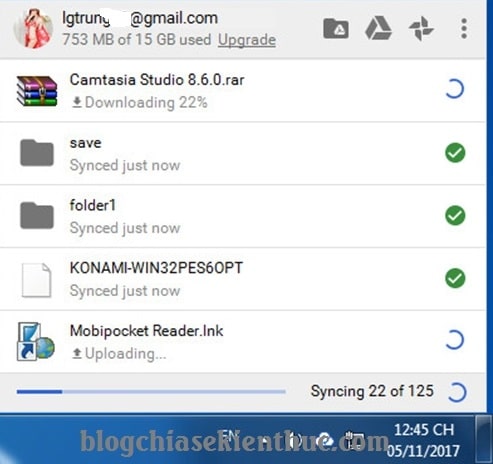
<p>Và tất nhiên bạn cần phải chờ một lúc thì mới thấy được, vì quá trình đồng bộ hoá sẽ phải diễn ra trong vòng ít phút, nhanh hay chậm thì còn tuỳ thuộc vào số lượng cũng như dung lượng file mà bạn đồng bộ.</p>

<p><img alt="cai-dat-google-drive-tren-may-tinh (18)" data-ll-status="loaded" height="464" src="https://blogchiasekienthuc.com/wp-content/uploads/2019/04/cai-dat-google-drive-tren-may-tinh-18.jpg" width="493" /></p>

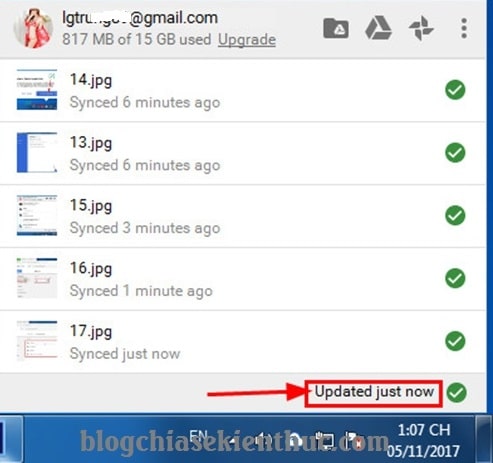
<p>Bạn có thể quản phần mềm Google Drive ngay trên máy tính.</p>

<p><img alt="cai-dat-google-drive-tren-may-tinh (17)" data-ll-status="loaded" height="463" src="https://blogchiasekienthuc.com/wp-content/uploads/2019/04/cai-dat-google-drive-tren-may-tinh-17.jpg" width="493" /></p>

<p>// *đọc thêm*//</p>

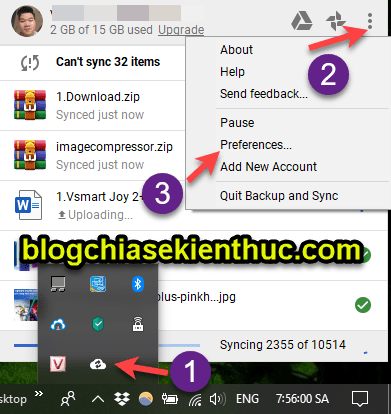
<p>Bạn có thể truy cập lại vào phần thiết lập một cách cực kỳ đơn giản, bạn làm theo hướng dẫn sau. Thực hiện:</p>

<p>Click chuột phải vào icon của Google Drive trên thanh&nbsp;<code>Taskbar</code>&nbsp;=&gt; nhấn vào dấu 3 chấm nằm dọc =&gt; và chọn&nbsp;<code>Preferences....</code></p>

<p><img alt="cach-su-dong-bo-google-drive-voi-may-tinh" data-ll-status="loaded" height="414" src="https://blogchiasekienthuc.com/wp-content/uploads/2019/04/cach-su-dong-bo-google-drive-voi-may-tinh.png" width="391" /></p>

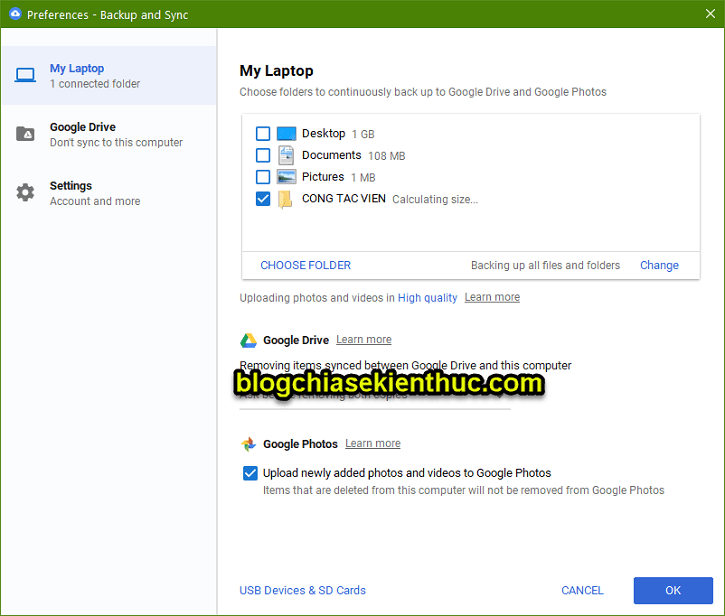
<p>Okay, tại đây bạn có thể dễ dàng thiết lập lại những thư mục mà bạn muốn đồng bộ hoặc ngưng đồng bộ rồi 😀</p>

<p><img alt="cach-su-dong-bo-google-drive-voi-may-tinh-1" data-ll-status="loaded" height="616" src="https://blogchiasekienthuc.com/wp-content/uploads/2019/04/cach-su-dong-bo-google-drive-voi-may-tinh-1.png" width="725" /></p>

<p>// *hết phần đọc thêm*//</p>

<h3><strong>#2. Hướng dẫn sử dụng ứng dụng Google Drive trên máy tính</strong></h3>

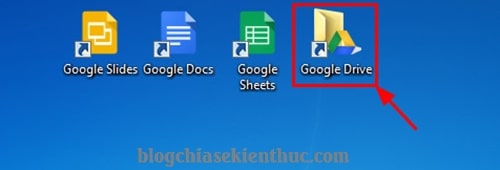
<p>Sau khi cài đặt phần Google Drive xong thì trên màn hình Desktop sẽ xuất hiện một số ứng dụng truy cập nhanh như :</p>

<ul>
	<li><strong>Google Slides</strong>&nbsp;(giống như ứng dụng PowerPoint)</li>
	<li><strong>Google Docs</strong>&nbsp;(giống như ứng dụng Word)</li>
	<li><strong>Google Sheet</strong>&nbsp;(giống như ứng dụng Excel)</li>
	<li><strong>Goole Drive</strong>&nbsp;(quản lý tệp tin đồng bộ hoá trên Drive).</li>
</ul>

<p><img alt="cai-dat-google-drive-tren-may-tinh (1)" data-ll-status="loaded" height="170" src="https://blogchiasekienthuc.com/wp-content/uploads/2019/04/cai-dat-google-drive-tren-may-tinh-1.jpg" width="500" /></p>

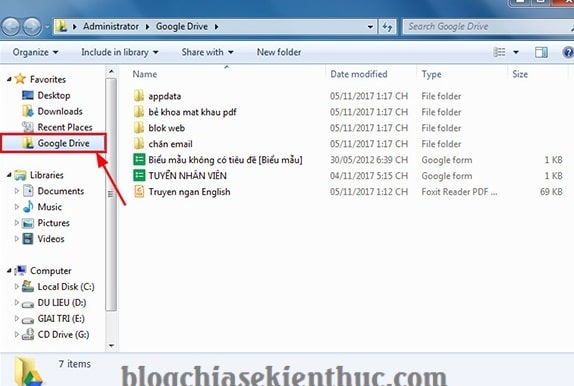
<p>Tại thư mục Google Drive bạn có thể kiểm soát các tệp tin trên tài khoản Google Drive của mình bằng cách xoá bỏ, hoặc kéo thả và Paste các tệp tin mới vào.</p>

<p>Và các tệp tin đã xóa sẽ biến mất trên tài khoản trực tuyến Google Drive, ngược lại các file mới sẽ được đồng bộ lên tài khoản Google Drive của mình</p>

<p>Nói chung là cũng tương tự như các thư mục bạn chọn đồng bộ hoá tại bước 10, 11 cũng sẽ luôn được cập nhật lên dịch vụ lưu trữ đám mây Google Drive.</p>

<p><img alt="cai-dat-google-drive-tren-may-tinh (3)" data-ll-status="loaded" height="386" sizes="(max-width: 574px) 100vw, 574px" src="https://blogchiasekienthuc.com/wp-content/uploads/2019/04/cai-dat-google-drive-tren-may-tinh-3.jpg" srcset="https://blogchiasekienthuc.com/wp-content/uploads/2019/04/cai-dat-google-drive-tren-may-tinh-3.jpg 574w, https://blogchiasekienthuc.com/wp-content/uploads/2019/04/cai-dat-google-drive-tren-may-tinh-3-110x75.jpg 110w" width="574" /></p>

<h3><strong>#3. Lời kết</strong></h3>

<p>Ok, với cách thức đồng bộ hóa dữ liệu giữa máy tính và tài khoản Google Drive này thì bạn có thể sử dụng các thông tin trên máy tính của mình ở mọi lúc và mọi nơi rồi, chỉ cần một điều kiện đó là có Internet là được.</p>

<p>Bạn có thể sử dụng các dữ liệu khi cần thiết ở bất cứ nơi đâu mà không cần bất kỳ thiết bị lưu trữ cầm tay (USB, thẻ nhớ…) nào khác.</p>

<p>Đến đây thì bài hướng dẫn&nbsp;<strong>đồng bộ dữ liệu Google Drive với máy tính</strong>&nbsp;của mình cũng xin được kết thúc. Hi vọng thủ thuật này sẽ hữu ích với các bạn.</p>

<p>Chúc các bạn thành công.</p>
		</div>
				<div id="author">
						<p>
				<strong>Tác giả bài viết:</strong>
				Thanh Sơn
			</p>
						<p>
				<strong>Nguồn tin:</strong>
				blogchiasekienthuc.com
			</p>
		</div>
	</div>
	<div id="footer" class="clearfix">
		<div id="url">
			<strong>URL của bản tin này: </strong><a href="https://tinhocdct.xyz/tin-cong-nghe/cai-dat-dong-bo-du-lieu-google-drive-voi-may-tinh-66.html" title="Cài đặt đồng bộ dữ liệu Google Drive với máy tính">https://tinhocdct.xyz/tin-cong-nghe/cai-dat-dong-bo-du-lieu-google-drive-voi-may-tinh-66.html</a>

		</div>
		<div class="clear"></div>
		<div class="copyright">
			&copy; TỔ TIN HỌC TRƯỜNG THPT ĐỖ CÔNG TƯỜNG
		</div>
		<div id="contact">
			<a href="mailto:webmaster@tinhocdct.xyz">webmaster@tinhocdct.xyz</a>
		</div>
	</div>
</div>
        <div id="timeoutsess" class="chromeframe">
            Bạn đã không sử dụng Site, <a onclick="timeoutsesscancel();" href="https://tinhocdct.xyz/#">Bấm vào đây để duy trì trạng thái đăng nhập</a>. Thời gian chờ: <span id="secField"> 60 </span> giây
        </div>
        <div id="openidResult" class="nv-alert" style="display:none"></div>
        <div id="openidBt" data-result="" data-redirect=""></div>
<div id="run_cronjobs" style="visibility:hidden;display:none;"><img alt="" src="/index.php?second=cronjobs&amp;p=d0Sxvi64" width="1" height="1" /></div>
<script src="https://tinhocdct.xyz/assets/js/jquery/jquery.min.js"></script>
<script>var nv_base_siteurl="/",nv_lang_data="vi",nv_lang_interface="vi",nv_name_variable="nv",nv_fc_variable="op",nv_lang_variable="language",nv_module_name="news",nv_func_name="savefile",nv_is_user=0, nv_my_ofs=-4,nv_my_abbr="EDT",nv_cookie_prefix="nv4",nv_check_pass_mstime=1738000,nv_area_admin=0,nv_safemode=0,theme_responsive=0,nv_is_recaptcha=0;</script>
<script src="https://tinhocdct.xyz/assets/js/language/vi.js"></script>
<script src="https://tinhocdct.xyz/assets/js/global.js"></script>
<script src="https://tinhocdct.xyz/themes/default/js/news.js"></script>
<script src="https://tinhocdct.xyz/themes/default/js/main.js"></script>
<script async src="https://pagead2.googlesyndication.com/pagead/js/adsbygoogle.js?client=ca-pub-1816161148536198"
     crossorigin="anonymous"></script>
<script src="https://tinhocdct.xyz/themes/default/js/bootstrap.min.js"></script>
</body>
</html>