<!DOCTYPE html>
	<html lang="vi" xmlns="http://www.w3.org/1999/xhtml" prefix="og: http://ogp.me/ns#">
	<head>
<title>Cách dọn dẹp bộ nhớ đệm trên Windows 11</title>
<meta name="description" content="Cách dọn dẹp bộ nhớ đệm trên Windows 11 - Savefile - Tin Tức - https&#x3A;&#x002F;&#x002F;tinhocdct.xyz&#x002F;savefile&#x002F;tin-cong-nghe&#x002F;cach-don-dep-bo-nho-dem-tren-windows-11-412.html">
<meta name="author" content="TỔ TIN HỌC TRƯỜNG THPT ĐỖ CÔNG TƯỜNG">
<meta name="copyright" content="TỔ TIN HỌC TRƯỜNG THPT ĐỖ CÔNG TƯỜNG [webmaster@tinhocdct.xyz]">
<meta name="robots" content="index, archive, follow, noodp">
<meta name="googlebot" content="index,archive,follow,noodp">
<meta name="msnbot" content="all,index,follow">
<meta name="generator" content="NukeViet v4.0">
<meta http-equiv="Content-Type" content="text/html; charset=utf-8">
<meta property="og:title" content="Cách dọn dẹp bộ nhớ đệm trên Windows 11">
<meta property="og:type" content="website">
<meta property="og:description" content="Savefile - Tin Tức - https&#x3A;&#x002F;&#x002F;tinhocdct.xyz&#x002F;savefile&#x002F;tin-cong-nghe&#x002F;cach-don-dep-bo-nho-dem-tren-windows-11-412.html">
<meta property="og:site_name" content="TỔ TIN HỌC TRƯỜNG THPT ĐỖ CÔNG TƯỜNG">
<meta property="og:url" content="https://tinhocdct.xyz/tin-cong-nghe/cach-don-dep-bo-nho-dem-tren-windows-11-412.html">
<link rel="shortcut icon" href="https://tinhocdct.xyz/favicon.ico">
<link rel="canonical" href="https://tinhocdct.xyz/tin-cong-nghe/cach-don-dep-bo-nho-dem-tren-windows-11-412.html">
<link rel="alternate" href="https://tinhocdct.xyz/rss/" title="Tin Tức" type="application/rss+xml">
<link rel="alternate" href="https://tinhocdct.xyz/rss/tin-tuc/" title="Tin Tức - TIN TỨC" type="application/rss+xml">
<link rel="alternate" href="https://tinhocdct.xyz/rss/thong-cao-bao-chi/" title="Tin Tức - THÔNG BÁO" type="application/rss+xml">
<link rel="alternate" href="https://tinhocdct.xyz/rss/ban-tin-noi-bo/" title="Tin Tức - BẢN TIN NỘI BỘ" type="application/rss+xml">
<link rel="alternate" href="https://tinhocdct.xyz/rss/tin-cong-nghe/" title="Tin Tức - CÔNG NGHỆ - KHOA HỌC" type="application/rss+xml">
<link rel="alternate" href="https://tinhocdct.xyz/rss/thu-thuat/" title="Tin Tức - THỦ THUẬT" type="application/rss+xml">
<link rel="alternate" href="https://tinhocdct.xyz/rss/tien-ich/" title="Tin Tức - TIỆN ÍCH" type="application/rss+xml">
<link rel="alternate" href="https://tinhocdct.xyz/rss/ai/" title="Tin Tức - AI" type="application/rss+xml">
<link rel="alternate" href="https://tinhocdct.xyz/rss/khoa-hoc/" title="Tin Tức - KHOA HỌC" type="application/rss+xml">
<link rel="alternate" href="https://tinhocdct.xyz/rss/hoat-dong-chuyen-mon/" title="Tin Tức - HOẠT ĐỘNG CHUYÊN MÔN" type="application/rss+xml">
<link rel="alternate" href="https://tinhocdct.xyz/rss/hoat-dong-cong-doan/" title="Tin Tức - CÔNG ĐOÀN" type="application/rss+xml">
<link rel="alternate" href="https://tinhocdct.xyz/rss/hoat-dong-doan-the/" title="Tin Tức - ĐOÀN THỂ" type="application/rss+xml">
<link rel="alternate" href="https://tinhocdct.xyz/rss/tuyen-sinh-huong-nghiep/" title="Tin Tức - TUYỂN SINH - HƯỚNG NGHIỆP" type="application/rss+xml">
<link rel="alternate" href="https://tinhocdct.xyz/rss/tuyen-sinh-2025/" title="Tin Tức - TUYỂN SINH 2025" type="application/rss+xml">
<link rel="alternate" href="https://tinhocdct.xyz/rss/lich-cong-tac-tuan/" title="Tin Tức - Lịch công tác tuần" type="application/rss+xml">
<link rel="preload" as="script" href="https://tinhocdct.xyz/assets/js/jquery/jquery.min.js">
<link rel="preload" as="script" href="https://tinhocdct.xyz/assets/js/language/vi.js">
<link rel="preload" as="script" href="https://tinhocdct.xyz/assets/js/global.js">
<link rel="preload" as="script" href="https://tinhocdct.xyz/themes/default/js/news.js">
<link rel="preload" as="script" href="https://tinhocdct.xyz/themes/default/js/main.js">
<link rel="preload" as="script" href="https://pagead2.googlesyndication.com/pagead/js/adsbygoogle.js?client=ca-pub-1816161148536198">
<link rel="preload" as="script" href="https://tinhocdct.xyz/themes/default/js/bootstrap.min.js">
<link rel="StyleSheet" href="https://tinhocdct.xyz/assets/css/font-awesome.min.css">
<link rel="StyleSheet" href="https://tinhocdct.xyz/themes/default/css/bootstrap.non-responsive.css">
<link rel="StyleSheet" href="https://tinhocdct.xyz/themes/default/css/style.css">
<link rel="StyleSheet" href="https://tinhocdct.xyz/themes/default/css/style.non-responsive.css">
<link rel="StyleSheet" href="https://tinhocdct.xyz/themes/default/css/news.css">
<style>
	body{background: #fff;}
</style>
	</head>
	<body>
<div id="print">
	<div id="hd_print">
		<h2 class="pull-left">TỔ TIN HỌC TRƯỜNG THPT ĐỖ CÔNG TƯỜNG</h2>
		<p class="pull-right"><a title="TỔ TIN HỌC TRƯỜNG THPT ĐỖ CÔNG TƯỜNG" href="https://tinhocdct.xyz/">https://tinhocdct.xyz</a></p>
	</div>
	<div class="clear"></div>
	<hr />
	<div id="content">
		<h1>Cách dọn dẹp bộ nhớ đệm trên Windows 11</h1>
		<ul class="list-inline">
			<li>Thứ tư - 18/09/2024 22:25</li>
			<li class="hidden-print txtrequired"><em class="fa fa-print">&nbsp;</em><a title="In ra" href="javascript:;" onclick="window.print()">In ra</a></li>
			<li class="hidden-print txtrequired"><em class="fa fa-power-off">&nbsp;</em><a title="Đóng cửa sổ này" href="javascript:;" onclick="window.close()">Đóng cửa sổ này</a></li>
		</ul>
		<div class="clear"></div>
		<div id="hometext">
			Xóa bộ nhớ đệm định kỳ giúp cải thiện hiệu suất hệ thống giúp cho các trải nghiệm hằng ngày trên Windows 11 mượt mà hơn.
		</div>
		<div id="bodytext" class="clearfix">
			Việc sử dụng máy tính Windows 11 thường xuyên có thể dẫn đến việc tích tụ các tệp bộ nhớ đệm không cần thiết, làm giảm hiệu suất và chiếm dụng không gian lưu trữ. Xóa bộ nhớ đệm định kỳ giúp cải thiện hiệu suất hệ thống. Dưới đây là một số phương pháp xóa bộ nhớ đệm trên Windows 11.
<div>&nbsp;</div>

<div><strong>Sử dụng ứng dụng Settings</strong></div>

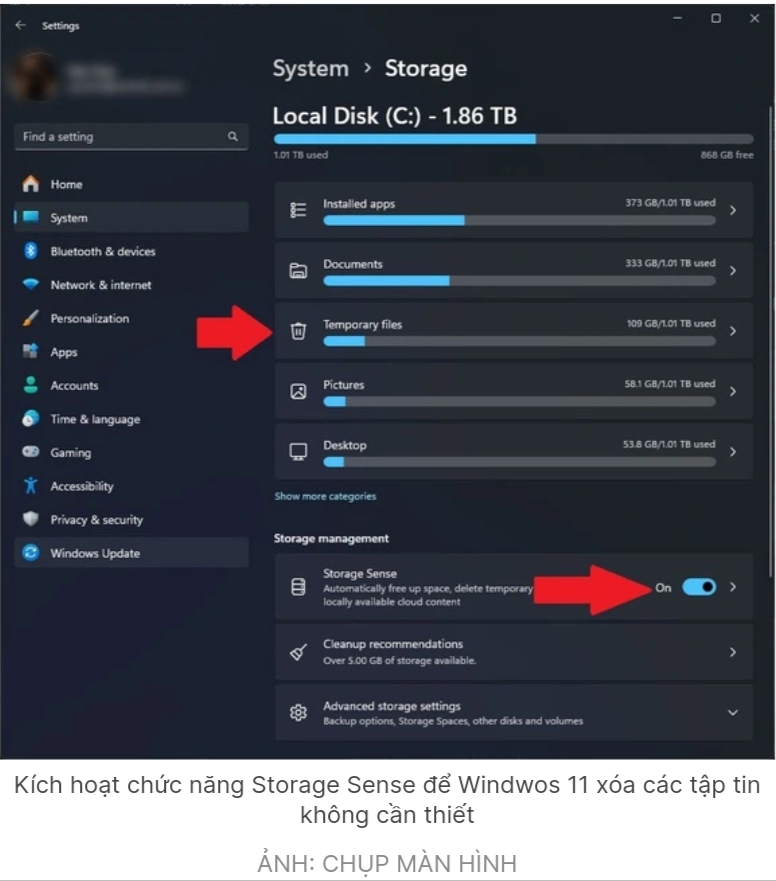
<div>Menu Settings trên Windows 11 cung cấp cho bạn nhiều tùy chọn quản lý bộ nhớ. Bạn có thể dễ dàng xóa các tệp tạm thời thông qua mục Storage trong phần System của Settings. Tại đây, chọn Temporary files và đánh dấu các loại tệp cần xóa. Nhấn Remove files để hoàn tất quá trình.<br  />
<br  />
<img alt="Screenshot 2024 09 19 09 31 25 392" height="881" src="https://tinhocdct.xyz/uploads/news/2024_09/screenshot_2024-09-19-09-31-25-392.png" width="776" /><br  />
<br  />
<strong>Kích hoạt tính năng Storage Sense</strong><br  />
Windows 11 tích hợp tính năng Storage Sense, giúp tự động xóa các tệp không cần thiết để giải phóng dung lượng. Bạn có thể bật tính năng này bằng cách vào Settings &gt; System &gt; Storage và bật Storage Sense. Tính năng này cho phép bạn thiết lập lịch trình xóa các tệp theo yêu cầu, bao gồm cả các tệp trong Recycle Bin và thư mục Downloads.</div>

<div>&nbsp;</div>

<div><strong>Dùng công cụ Disk Cleanup</strong></div>

<div>Ngoài Settings, Windows 11 còn cung cấp công cụ Disk Cleanup trong Control Panel. Đây là một cách tiếp cận truyền thống nhưng hiệu quả để xóa bộ nhớ đệm. Mở Disk Cleanup từ menu Start, chọn ổ đĩa cần làm sạch, sau đó chọn các tệp cần xóa và nhấn OK.</div>

<div>&nbsp;</div>

<div><strong>Xóa bộ nhớ đệm ứng dụng</strong></div>

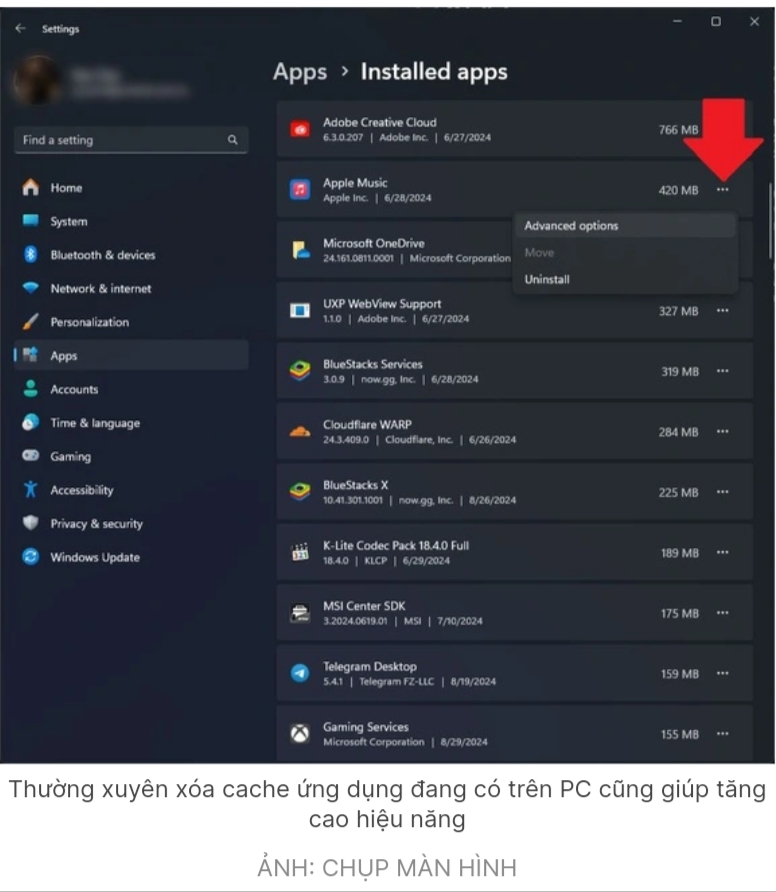
<div>Windows 11 cho phép xóa bộ nhớ đệm của từng ứng dụng riêng lẻ thông qua Settings. Vào Settings &gt; Apps &gt; Installed apps, chọn ứng dụng cần xóa bộ nhớ đệm, nhấn Advanced options và sau đó chọn Reset để xóa dữ liệu và bộ nhớ đệm của ứng dụng đó.<br  />
<img alt="" height="892" src="https://tinhocdct.xyz/uploads/news/2024_09/screenshot_2024-09-19-09-31-50-287_1.png" width="776" /><br  />
<strong>Xóa bộ nhớ đệm DNS và Microsoft Store</strong></div>

<div>Bộ nhớ đệm DNS có thể được xóa để giải quyết các vấn đề kết nối mạng. Để thực hiện, mở Command Prompt với quyền Administrator và gõ lệnh ipconfig /flushdns. Đối với Microsoft Store, mở hộp thoại Run (Windows + R), nhập wsreset.exe và nhấn Enter để xóa bộ nhớ đệm của Store.</div>

<div>&nbsp;</div>

<div><strong>Xóa bộ nhớ đệm trình duyệt</strong></div>

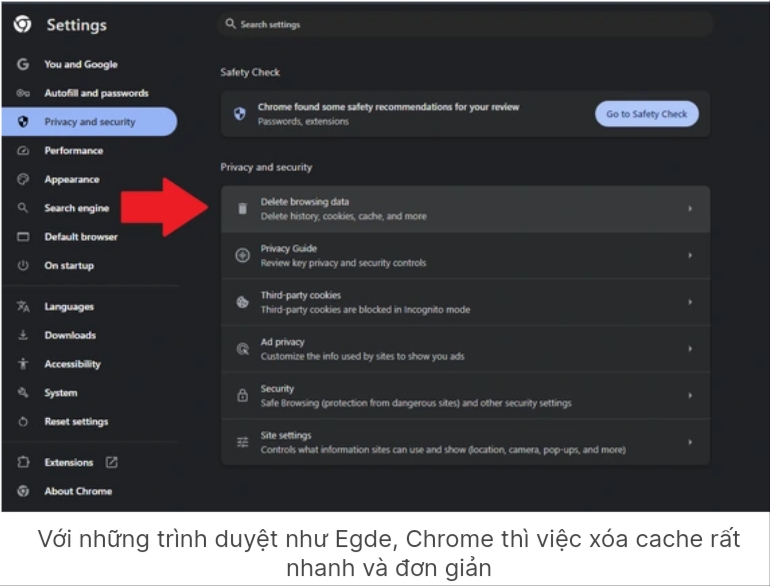
<div>Để giải phóng dung lượng và tăng tốc độ duyệt web, hãy xóa bộ nhớ đệm của trình duyệt. Đối với các trình duyệt dựa trên nhân Chromium như Chrome, Edge hoặc Brave, vào Settings, chọn Privacy and security, sau đó chọn Clear browsing data và đánh dấu Cached images and files. Nhấn Clear data để hoàn tất. Việc này có thể yêu cầu bạn đăng nhập lại vào các trang web. Các bước có thể hơi khác nếu bạn dùng Firefox hoặc Safari.<br  />
<img alt="" height="586" src="https://tinhocdct.xyz/uploads/news/2024_09/screenshot_2024-09-19-09-32-16-625_1.png" width="770" /><br  />
<br  />
<strong>Xóa lịch sử vị trí</strong></div>

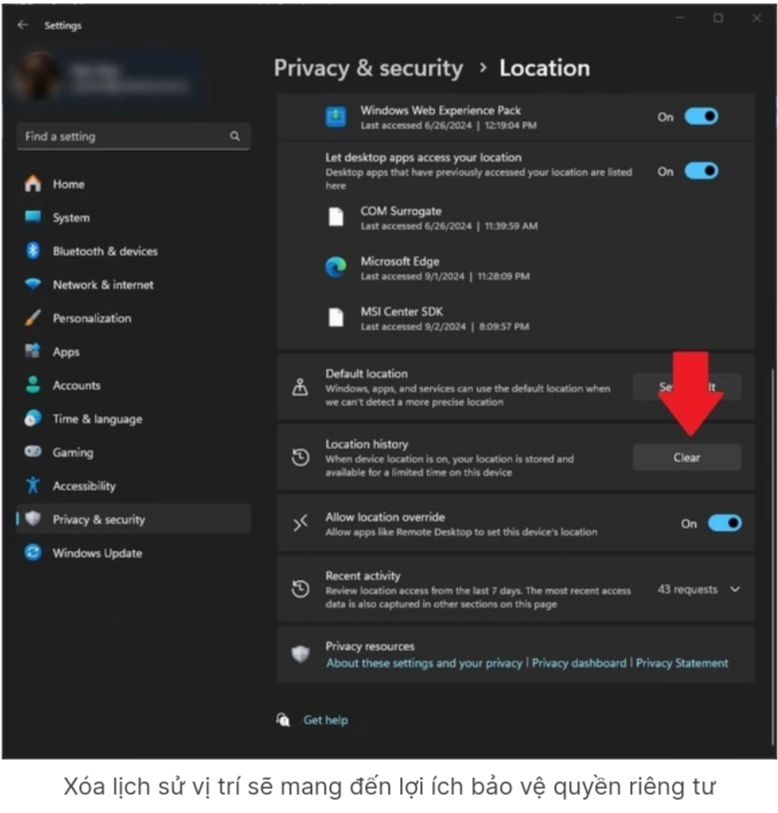
<div>Mặc dù việc xóa lịch sử vị trí không giúp giải phóng nhiều không gian, nhưng nó có thể hữu ích để bảo vệ quyền riêng tư của bạn. Vào Settings &gt; Privacy &amp; security &gt; Location, tìm tùy chọn Location history và nhấn Clear.<br  />
<br  />
<img alt="" height="813" src="https://tinhocdct.xyz/uploads/news/2024_09/screenshot_2024-09-19-09-32-41-933_1.png" width="778" /><br  />
<br  />
Xóa bộ nhớ đệm định kỳ là một cách hiệu quả để duy trì hiệu suất tối ưu cho hệ thống Windows 11. Điều này không chỉ giải phóng không gian lưu trữ mà còn giúp hệ thống hoạt động mượt mà hơn, giảm thiểu các lỗi và tăng tốc độ xử lý. Hãy thực hiện các bước trên để đảm bảo máy tính của bạn luôn hoạt động tốt nhấtảnh widget</div>
		</div>
				<div id="author">
						<p>
				<strong>Tác giả bài viết:</strong>
				Thanh Sơn
			</p>
						<p>
				<strong>Nguồn tin:</strong>
				thanhnien.vn
			</p>
		</div>
	</div>
	<div id="footer" class="clearfix">
		<div id="url">
			<strong>URL của bản tin này: </strong><a href="https://tinhocdct.xyz/tin-cong-nghe/cach-don-dep-bo-nho-dem-tren-windows-11-412.html" title="Cách dọn dẹp bộ nhớ đệm trên Windows 11">https://tinhocdct.xyz/tin-cong-nghe/cach-don-dep-bo-nho-dem-tren-windows-11-412.html</a>

		</div>
		<div class="clear"></div>
		<div class="copyright">
			&copy; TỔ TIN HỌC TRƯỜNG THPT ĐỖ CÔNG TƯỜNG
		</div>
		<div id="contact">
			<a href="mailto:webmaster@tinhocdct.xyz">webmaster@tinhocdct.xyz</a>
		</div>
	</div>
</div>
        <div id="timeoutsess" class="chromeframe">
            Bạn đã không sử dụng Site, <a onclick="timeoutsesscancel();" href="https://tinhocdct.xyz/#">Bấm vào đây để duy trì trạng thái đăng nhập</a>. Thời gian chờ: <span id="secField"> 60 </span> giây
        </div>
        <div id="openidResult" class="nv-alert" style="display:none"></div>
        <div id="openidBt" data-result="" data-redirect=""></div>
<script src="https://tinhocdct.xyz/assets/js/jquery/jquery.min.js"></script>
<script>var nv_base_siteurl="/",nv_lang_data="vi",nv_lang_interface="vi",nv_name_variable="nv",nv_fc_variable="op",nv_lang_variable="language",nv_module_name="news",nv_func_name="savefile",nv_is_user=0, nv_my_ofs=-4,nv_my_abbr="EDT",nv_cookie_prefix="nv4",nv_check_pass_mstime=1738000,nv_area_admin=0,nv_safemode=0,theme_responsive=0,nv_is_recaptcha=0;</script>
<script src="https://tinhocdct.xyz/assets/js/language/vi.js"></script>
<script src="https://tinhocdct.xyz/assets/js/global.js"></script>
<script src="https://tinhocdct.xyz/themes/default/js/news.js"></script>
<script src="https://tinhocdct.xyz/themes/default/js/main.js"></script>
<script async src="https://pagead2.googlesyndication.com/pagead/js/adsbygoogle.js?client=ca-pub-1816161148536198"
     crossorigin="anonymous"></script>
<script src="https://tinhocdct.xyz/themes/default/js/bootstrap.min.js"></script>
</body>
</html>